Hey operator, if you’ve been sitting on a pile of duplicate skins or chasing that one weapon camo you missed years ago, the R6 Marketplace is your new best friend. No more begging in Discord or risking shady third-party sites. But first—you need to know how to access R6 Marketplace and start trading safely for R6 Credits with other players.
The best part? It’s dead simple once you know the exact steps. I’ve been in and out of this thing since it went fully live, flipping old event skins and snagging deals on Black Ice variants that still pop off in casuals. This guide walks you through every single click from zero to your first order, using the exact menu names you’ll see on screen. No fluff, just what actually works right now.
Why the R6 Marketplace Matters for Real Players
Most of us have inventory full of stuff we don’t use. That Year 8 operator bundle you bought on a whim? Gone in one sale order and turned into credits for the next battle pass. Or you want a specific attachment skin from Operation Commanding Force that Ubisoft pulled from the store. The marketplace lets you set your price and wait for a match instead of hoping the in-game shop rotates it back.
It runs completely on the web, syncs straight to your in-game inventory, and uses only R6 Credits. No real money involved in the trades themselves (you still buy credits through Ubisoft like normal). And yes, it works on PC, Xbox, PlayStation, wherever your Ubisoft account is linked.
The Exact Requirements You Need Before You Can Log In
Ubisoft doesn’t let just anyone jump in. Here’s what you must have sorted first:
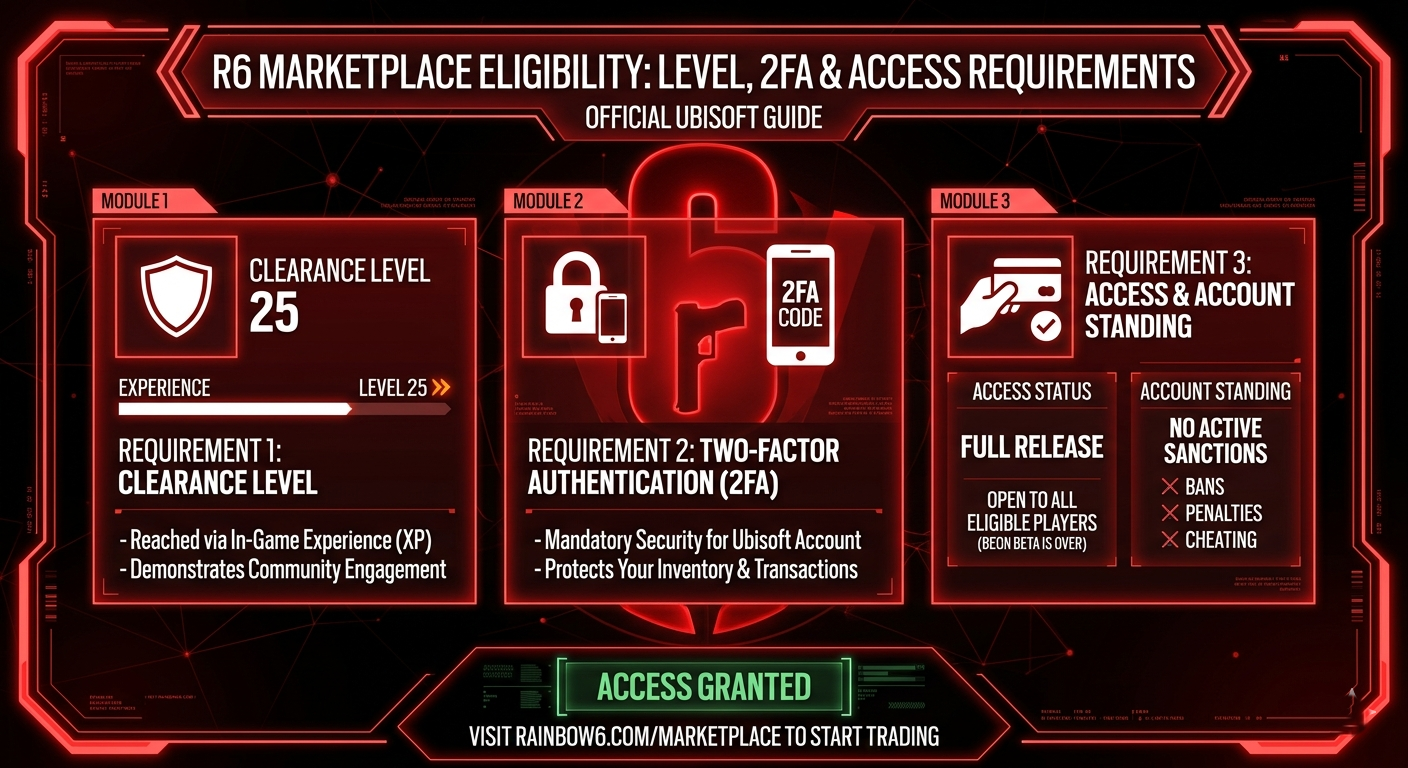
- Clearance Level 25 or higher in Rainbow Six Siege. Not account level, your actual in-game clearance level. If you’re below that, you’re locked out until you grind it.
- Recent XP earned by actually playing matches. Logging in and doing nothing won’t cut it. Hop into Unranked or Quick Match for a few games and you’re good.
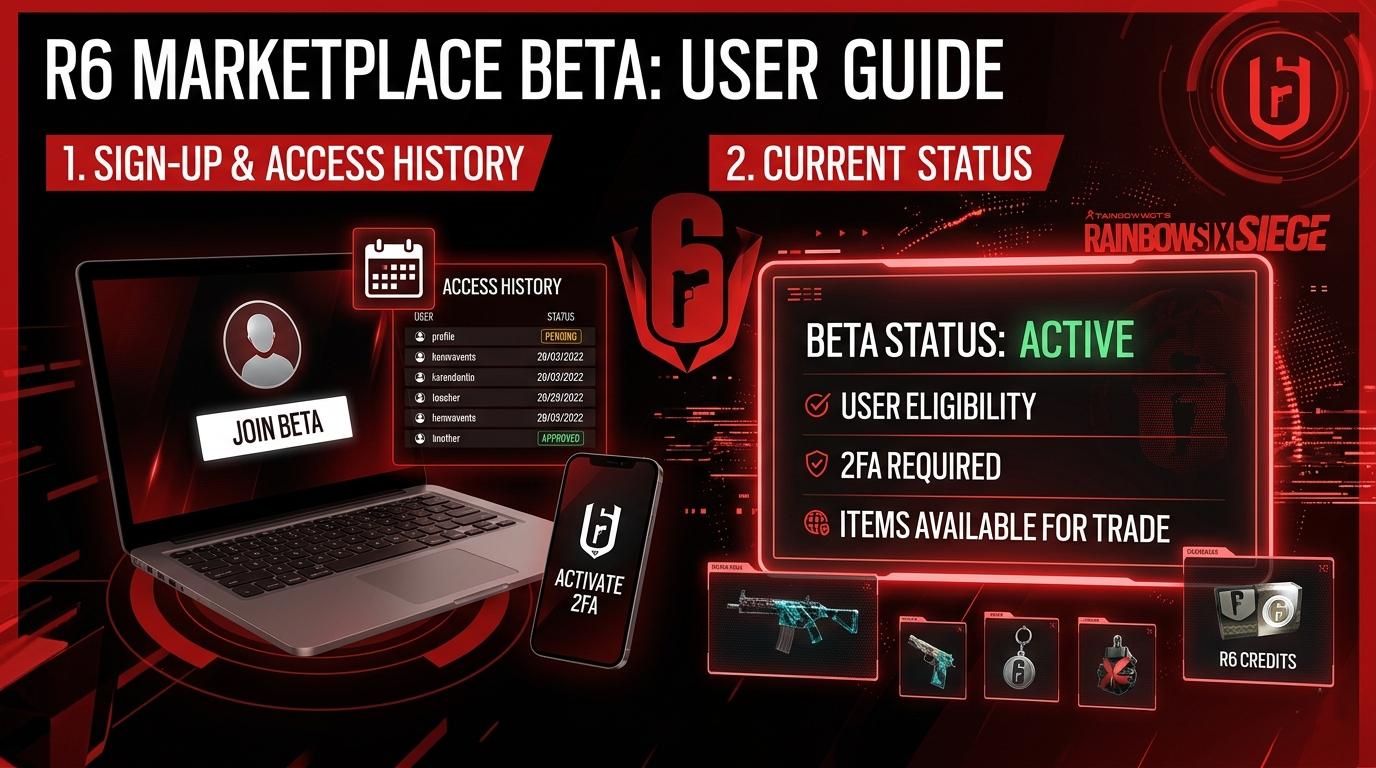
- 2FA (Two-Factor Authentication) turned on for your Ubisoft account. This is non-negotiable.
- Clean account with no active sanctions or bans.
Hit all four and you’re in. Miss one and you’ll get the “cannot engage in marketplace trading” message. I see this trip up new players constantly.
Step-by-Step: Setting Up Your Ubisoft Account and 2FA
If your account isn’t ready, fix it now.
- Go to account.ubisoft.com and log in (or create one if you somehow still don’t have it).
- Make sure your Siege account is linked to the right platform (Steam, Ubisoft Connect PC, Xbox, PlayStation, etc.). You can check this under Account Information > Linked Accounts.
- Head to the Security tab on the left.
- Under 2-Step Verification, click Activate.
- Choose the Authenticator app (I use Google Authenticator or the Ubisoft mobile app, both work fine).
- Scan the QR code with your phone app and enter the code it gives you.
- Add a backup phone number while you’re there. You’ll thank me later if your phone dies.
It takes two minutes. Do it once and you never think about it again. Ubisoft forces this for a reason. Skins worth thousands of credits have been stolen in the past when accounts weren’t secured.
Grinding to Level 25 Fast (If You’re Not There Yet)
Newer players always ask how long this takes. With daily challenges and the current battle pass, most people hit level 25 in a week or two of normal play. Focus on Unranked or Standard playlists. They give solid XP without the stress of ranking.
Pro tip: Stack daily and weekly challenges. One good night of playing with friends can net you 3-4 levels easily. Once you’re at 25, keep playing at least one match every couple of days so the “recent XP” flag stays green. Ubisoft checks this to stop dormant accounts from trading.
How to Access the R6 Marketplace and Complete Login
This is the part everyone overcomplicates.
- Open your browser and go straight to the official page: ubisoft.com/game/rainbow-six/siege/marketplace (Google “R6 Marketplace” and it’s the top result).
- Click the big Log In button.
- Enter your Ubisoft email and password.
- Approve the 2FA code from your authenticator app (this pops up every time you log in from a new device or after a while).
- You’re in. The homepage loads your tradable inventory and the main tabs at the top.
That’s it. No separate app, no in-game button, no extra sign-up. If you just changed your password or email, you might sit in a short security cooldown (usually 24-48 hours). Happens to everyone at some point.
First Look Inside: The Dashboard and Tabs
Once logged in you see three main tabs across the top:
- Buy – Everything available to purchase right now.
- Sell – Your current inventory that you can list.
- My Transactions – Active orders, history, and cancelled/expired stuff.
On the homepage you also get quick links to popular item types: weapon skins, operator cosmetics, attachments, charms, whatever is tradable this season. Current season items stay locked until the next season drops, so don’t bother looking for them yet.
Pagination arrows let you flip through pages of listings. Search bar at the top works great if you know the exact name (try typing “Glacier” or “Black Ice” and watch the results fill).
How to Buy Items on the R6 Marketplace
Want that Plasma Pink universal skin or the old Event camo you missed?
- Click the Buy tab.
- Search or browse until you find the item tile you want.
- Click the tile to open the details.
- In the Purchase Order box, type the maximum R6 Credits you’re willing to pay.
- Hit Purchase Order then Confirm.
You can have up to five active purchase orders at once. Each lasts 30 days. The system automatically matches you with the lowest available sale order below your max price. When it hits, you get a notification and the item appears in your in-game inventory after a couple minutes.
Real example I did last week: Set a purchase order for a specific Year 7 weapon skin at 420 credits. Got matched within 40 minutes because someone listed it at 380. Saved myself the hassle of farming renown for packs that might not drop it.
How to Sell Items and Turn Duplicates Into Credits
Selling is even easier if you already own the skin.
- Click the Sell tab.
- Your eligible inventory loads automatically. Pick the item you want to get rid of.
- In the Sell section, type how many R6 Credits you want for it.
- Hit Sale Order then Confirm.
The item immediately leaves your in-game inventory and becomes a pending sale order. Up to five active at once, 30-day expiry. When a buyer’s purchase order matches your price (or higher), it sells instantly and credits hit your account.
Ubisoft takes a 10% fee on the sale amount, so price accordingly. I always check similar listings first so I don’t undersell. Expired orders stay in your history so you can relist them later with a new price.
One thing I learned the hard way: After you buy something, you have to wait 15 days before you can sell that exact same item again. Stops instant flipping abuse.
Pro Tips I Wish I Knew on Day One
- Price volatility is real. A skin that’s 800 credits today might be 1200 next week when the new season hype dies down. Check the order book daily if you’re serious.
- Popular items like Black Ice variants or Glacier skins move fastest. Niche operator headgears can sit for weeks.
- Always have some spare R6 Credits ready. Nothing worse than finding the perfect deal and not having enough to cover your max offer.
- Console players: make sure your Ubisoft account is the one linked to your console profile. Cross-progression is seamless once that’s done.
- If you see “item not tradable” it’s almost always because it’s from the current season. Patience.
Common Problems and Quick Fixes
Can’t log in? Double-check 2FA code and that you’re using the exact Ubisoft email tied to your Siege account.
“Cannot engage in marketplace trading”? You’re either under level 25, haven’t played recently, or have a sanction. Play a few matches and try again in 24 hours.
Order not showing up in inventory? Give it 5-10 minutes. The sync isn’t instant.
Recent password change? Ubisoft locks trading for security. Wait it out.
Still stuck? Head to the official Ubisoft help pages I linked throughout this guide. Their support is slow but the articles are accurate.
FAQ: The Questions I Get Asked Most
Do I need to download anything extra?
Nope. It’s 100% web-based.
Is this safe?
Completely. Ubisoft handles every transaction. Your items never leave their system until the match is confirmed.
Can I use it on mobile?
Yes, the site works fine on your phone browser, though creating orders is smoother on desktop.
What items are actually tradable?
Pretty much any cosmetic you own except current-season stuff and a few restricted bundles. Check the Sell tab; if it shows up, you can list it.
How fast do credits appear after a sale?
Usually within minutes. Then launch the game to see them in your balance.
Is there a limit on how much I can trade?
Only the five active orders per type rule. No daily credit cap that I’ve hit.
Time to Jump In and Start Trading
You now know exactly how to access the R6 Marketplace, nail the login, and start buying or selling like someone who’s been doing this for seasons. Go get that skin you’ve wanted forever or finally clear out the duplicates cluttering your inventory.
Bookmark the marketplace page, keep 2FA on, and play a couple matches so you stay eligible. Once you make your first successful trade you’ll wonder how you ever lived without it.
Drop your first marketplace win in the comments on the site. I read every single one and love hearing what crazy deals people are pulling off. See you in the order book, operators. Stay frosty.